
2.1 How do I add new contacts to Regards?
In this article you will learn about how to add new contacts to Regards using different methods.
You can add contacts to Regards AI in four different ways:
- Scan a business card
- Import from your phone book
- Add using LinkedIn
- Add manually
You can upload your contacts using any of these four methods.
Option 1: Scan a Business Card
- On the Home Screen, you will see "Scan a business card" click on that.

- You can also click the “+” button on the home screen to view all available options. Now click on "Scan a business card" from the list.

- Your camera will open automatically.
Note: If this is your first time using this feature, you will be asked to allow camera access. Please approve the permission so Regards AI can scan your card.
- Once access is granted, hold the card clearly in front of the camera and capture the image, once the image is scanned, Click Next.

- Regards will extract your contact details from the business card.

- Regards AI will automatically extract the following details,
- First and last name
- Company and role
- Phone number
- Email address
- A copy of the card
- Carefully review all the extracted details on the screen, and if everything is correct, click Proceed to create the contact; if any information is incorrect, edit the details and then click Proceed.

- Your contact is added to Regards successfully.
- After adding your contacts, you can add notes to capture important details and plan follow-ups. Click here to learn how to add notes.
Option 2: Add from Your Phone book
- On the home screen, Click Add from Phone book.

- Or you can also click the “+” button. From the list of options, click Add from Phone book.

When you select Add from Phone book, you will be asked to grant access to your phone contacts. Once the access is granted, you can then choose and upload only the contacts you want into Regards AI.
- Select the contact from the list and click Done.
- You can choose one or multiple contacts, and only the selected contacts will be added to Regards AI.

- To view the contacts you have added, click the Contacts tab at the bottom of the Home Screen.
- All the contacts you have added or uploaded will be listed there.
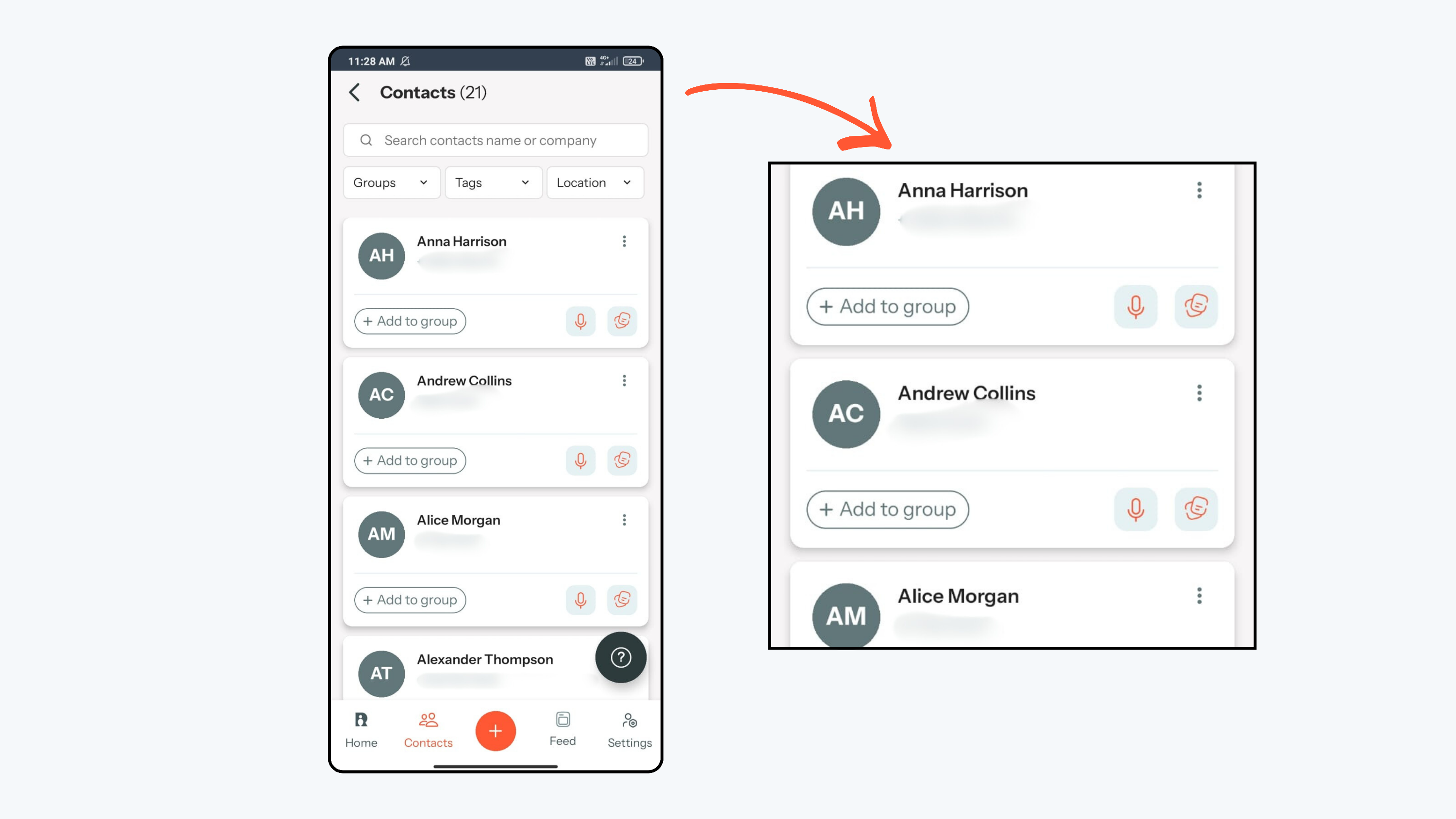
- After adding your contacts, you can add notes to capture important details and plan follow-ups. Click here to learn how to add notes.
Option 3: Add via LinkedIn
You can add a contact from LinkedIn in three different ways.
A. Paste LinkedIn Profile URL
- Click on the + icon on home screen and select By their LinkedIn from the list.

-
Paste the LinkedIn profile URL into the provided field and click Proceed.
Note: To find the LinkedIn profile URL, open the LinkedIn app and go to the connection’s profile page. Click the three dots below the follower or connection count, then click Share and select Copy link. The profile URL will be copied to your clipboard, and you can paste it here.

- Regards AI will extract available profile details automatically.

- Review the extracted information carefully on the screen. If everything looks correct, click Proceed to save the contact. If you want you can edit as well.

- Your contact is added to Regards successfully.
- After adding your contacts, you can add notes to capture important details and plan follow-ups. Click here to learn how to add notes.
B. Add Manually Using LinkedIn Search
- From the Home Screen, click the “+” button and select By their LinkedIn. Click on Add details.

- Fill in the required details:
- First and last name
- Company
- Role
- After entering the details, click Search profile.

- Regards AI will open a Google search for your profile. You can then select your LinkedIn profile from the search results.

- Click Set Profile and Regards will connect your LinkedIn profile instantly.

- Review the extracted details and click Proceed to continue.

- Your contact is added to Regards successfully.
- After adding your contacts, you can add notes to capture important details and plan follow-ups. Click here to learn how to add notes.
C. Use a LinkedIn Screenshot
- Before starting this process, take a full screenshot of the person’s LinkedIn profile clearly showing their profile picture, name, company, and role.

- From the Home Screen, click the “+” button and select By their LinkedIn. Click Snap a screenshot located at the bottom-right corner.

- Click Tap to add screenshot, then allow Photos or Gallery access if prompted.

- Select the saved screenshot from your device.

- After selecting the screenshot, click Search profile.

- Regards AI will read the screenshot and suggest a matching LinkedIn profile.

- Review the suggested profile carefully and confirm if it is correct.
- Make sure you at least add one contact detail such as phone number, email, or LinkedIn URL (if available)

- Once the details are entered, click Proceed to continue.

- Your contact is added to Regards successfully.
- After adding your contacts, you can add notes to capture important details and plan follow-ups. Click here to learn how to add notes.
Option 4: Enter Details Manually
- On the Home Screen, press on the + icon and click on Enter manually

- Fill in the required details asked:
- First and last name
- Company
- Role
- At least one contact detail (phone number, email, or LinkedIn URL is mandatory)

- After entering the details, click Proceed.

- Your contact is added to Regards successfully.
- After adding your contacts, you can add notes to capture important details and plan follow-ups. Click here to learn how to add notes.