
2.4 How do I bulk Import contacts on the web?
In this article you will learn how you can bulk upload your contacts into Regards AI using the web version. This is helpful when you have a large list of contacts stored in platforms like LinkedIn or excel.
-
To begin, use the following link to open the platform: https://signup.regardsapp.ai/login
Log in to your account using your registered email address and complete the email OTP verification.
Note: You should have created your account before accessing this link. Refer to this section to learn how to create your account.
- Once you are logged in, you will be taken to the Bulk Import page
- On the Bulk Import page, you will see three ways to import your contacts from:
- LinkedIn Connections
- Google Contacts
- Other Source
Option 1: Import from LinkedIn Connections
- Choose LinkedIn Connections as the source from the drop down.
Once its selected you will see a step-by-step guide on how to export your connections data. Follow the instructions to export your connections data from LinkedIn as a CSV file.

- Upload your file from the system or simply Drag and Drop your file.

- Check the box to confirm that your file follows the required format and Click on Upload Contacts

- Your LinkedIn contacts will now be successfully imported.
Review auto-categorized Groups
Regards AI will automatically categorize your contacts, and you will see a list of groups created for you.
- Click Review to continue.

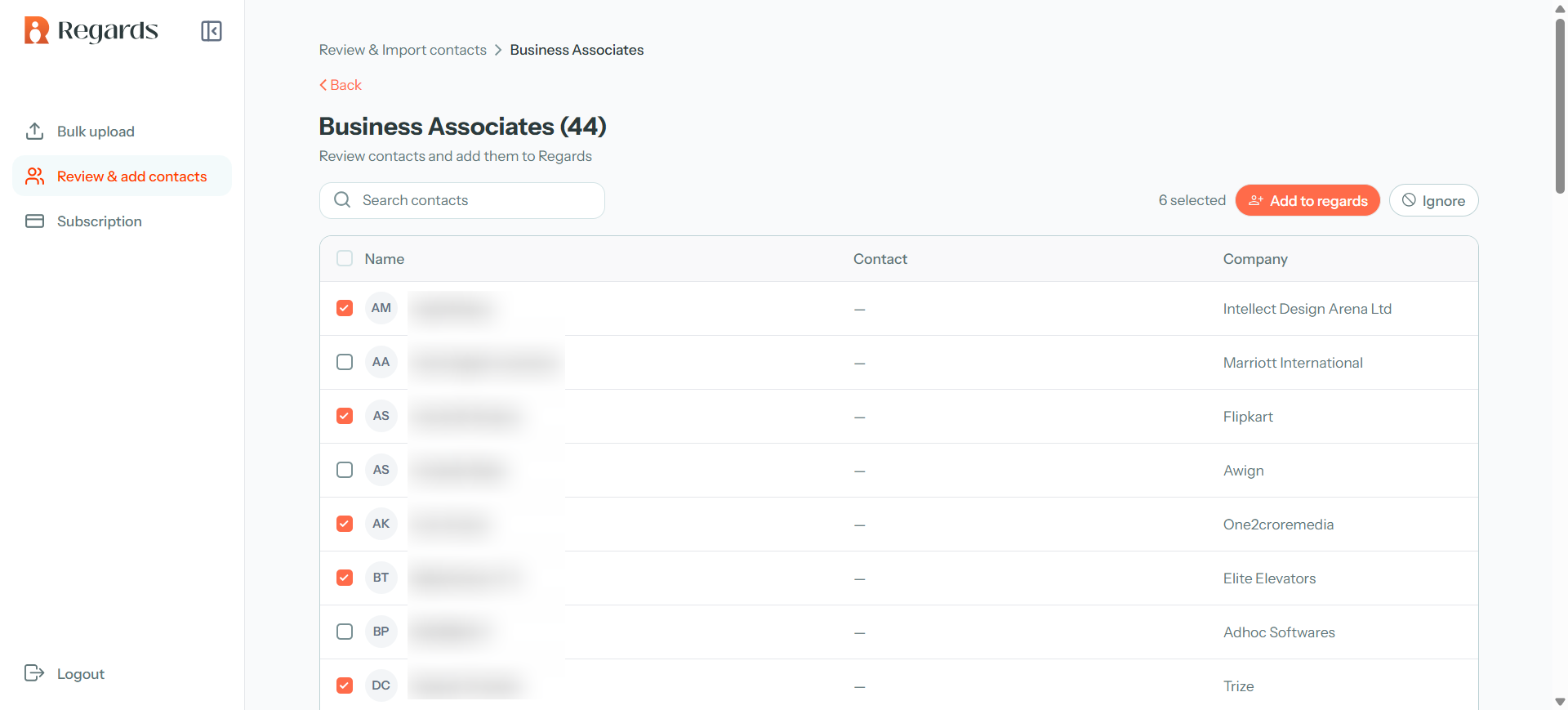
- On the Review & Add Contacts page, you will see a list of all the groups created.

-
From this list, select a group and review the contacts within it.
-
Choose the contacts you want to add to Regards AI, then click Add to Regards to complete the process.
If you are looking for a specific contact, you can use the search bar at the top of the page to find the contact.

Adding the selected contacts to existing Groups inside Regards account
- A popup will appear showing a list of your existing groups. You can choose how to organize your contacts by selecting an existing group in your account (Clients, Leads, Colleagues)

- If none of the existing groups match your needs, you can create a new group with a custom name and turn on the Frequency toggle to decide how often you would like to stay in touch with this person.
You can choose from the following options:
- Every week
- Every two weeks
- Every month
- Every quarter
- Selecting a frequency helps Regards AI send you timely reminders under Today’s Priority, so you never lose touch.
- After selecting or creating a group, click Assign Group to confirm.

- Once the group is assigned your selected contacts will be added to that group in your Regards account.
- A confirmation message appear indicating that the contacts were successfully added.
If you want to Ignore the group you can just click on Ignore and your selected contacts will not be added to any of the existing groups in y our account.
Option 2: Import from Google Contacts
- Choose Google Contacts as the source from the drop down
- Follow the instructions provided to export your contacts from Google as a CSV file.

- Upload your file from the system or simply Drag and Drop your file.

- Confirm that the file follows the required format and Click Upload Contacts

- Your Google contacts will now be imported into Regards AI.
Review auto-categorized Groups
Regards AI will automatically categorize your contacts, and you will see a list of groups created for you.
- Click Review to continue.
- On the Review & Add Contacts page, you will see a list of all the groups created.
- From this list, select a group and review the contacts within it.
- Choose the contacts you want to add to Regards AI, then click Add to Regards to complete the process.
If you are looking for a specific contact, you can use the search bar at the top of the page to find the contact.
Adding the selected contacts to existing Groups inside Regards account
- A popup will appear showing a list of your existing groups. You can choose how to organize your contacts by selecting an existing group (Clients, Leads, Colleagues)
- If none of the existing groups match your needs, you can create a new group with a custom name and turn on the Frequency toggle to decide how often you would like to stay in touch with this person.
You can choose from the following options:
- Every week
- Every two weeks
- Every month
- Every quarter
- Selecting a frequency helps Regards AI send you timely reminders under Today’s Priority, so you never lose touch.
- After selecting or creating a group, click Assign Group to confirm.
- Once the group is assigned your selected contacts will be added to Regards AI
- A confirmation message appear indicating that the contacts were successfully added.
If you want to Ignore the group you can just click on Ignore and your selected contacts will not be added to any of the existing groups.
Option 3: Import from Other Sources
Other sources refer to contacts stored in platforms such as HubSpot, Facebook, any CRM tool, or even a simple Excel file.
You can format the data in the required template and upload it to Regards AI within a few minutes.
- Choose Other Sources from the drop down.
Follow the guide to export your contacts from your chosen platform.
- You will also see an option to Download Sample Template right there. Use this template to format your data correctly if needed.
- Make sure your file is in XLSX format before uploading.

- Upload your file from the system or simply Drag and Drop your file.

- Confirm that your file follows the required format and Click Upload Contacts

- Your contacts will now be uploaded successfully.
Review auto-categorized Groups
Regards AI will automatically categorize your contacts, and you will see a list of groups created for you.
- Click Review to continue.
- On the Review & Add Contacts page, you will see a list of all the groups created.
- From this list, select a group and review the contacts within it.
- Choose the contacts you want to add to Regards AI, then click Add to Regards to complete the process.
If you are looking for a specific contact, you can use the search bar at the top of the page to find the contact.
Adding the selected contacts to existing Groups inside Regards account
- A popup will appear showing a list of your existing groups. You can choose how to organize your contacts by selecting an existing group (Clients, Leads, Colleagues)
- If none of the existing groups match your needs, you can create a new group with a custom name and turn on the Frequency toggle to decide how often you would like to stay in touch with this person.
You can choose from the following options:
- Every week
- Every two weeks
- Every month
- Every quarter
- Selecting a frequency helps Regards AI send you timely reminders under Today’s Priority, so you never lose touch.
- After selecting or creating a group, click Assign Group to confirm.
- Once the group is assigned your selected contacts will be added to Regards AI
- A confirmation message appear indicating that the contacts were successfully added.
If you want to Ignore the group you can just click on Ignore and your selected contacts will not be added to any of the existing groups.